Getting started
This walks you from a fresh download to a notification on screen and a result you can act on. Do it on your own PC first; Deploying covers pushing it to a fleet.
1. Put the exe somewhere
Pardon is a single file, pardon.exe. There is no installer and nothing to register. Copy it anywhere, for example C:\Program Files\Pardon\pardon.exe, or have your RMM drop it next to the script that calls it.
It runs on 64-bit Windows (verified on Windows 11 and Windows Server 2022) and needs Microsoft's WebView2 runtime, which almost every Windows machine already has. If one doesn't, Pardon downloads and installs it silently the first time it runs, which needs outbound HTTPS to Microsoft and admin rights. See Troubleshooting for air-gapped machines.
2. Check the machine is ready
pardon.exe selftest{"dpi_scale":1.0,"ok":true,"program_data_writable":true,"session":"in-session (DESK-4021\\alice)","tool":"pardon","tool_version":"0.1.0","webview2":{"present":true,"version":"156.0.4314.50"}}ok: true means Pardon can draw a window here. session tells you whether it is running inside a user's desktop session or as SYSTEM.
3. Show your first toast
The quickest way is the one-liner form, no JSON needed:
pardon.exe show --title "Printer maintenance at noon" --body "The 2nd-floor printer is offline from 12:00 to 12:30." --buttons "Later,Got it"
The toast appears in the bottom-right corner and stays on top until it is answered. The last button you list is the primary one. Because this one-liner carries no branding, the sidebar uses Pardon's neutral slate and the name reads "Organization"; Branding shows how to put your own name and colour there.
--severity sets the icon (info, warning, critical, success or neutral), and --timeout 60 makes the toast go away on its own after a minute.
4. Read the result
When the user clicks, Pardon closes the toast, prints one line of JSON to stdout and exits with a code that says what happened:
{"schema":"result/v1","campaign_id":"adhoc-toast","type":"toast","host":{"name":"DESK-4021","os":"Windows 11 Pro","os_build":"26200.9550","tool_version":"0.1.0"},"context":"user","outcome":"acknowledged","exit_code":0,"user":"DESK-4021\\alice","shown_at":"2026-10-28T15:02:11Z","answered_at":"2026-10-28T15:02:16Z","elapsed_ms":5120,"detail":{"button":"Got it","button_id":"got-it"}}Most RMMs only keep the exit code, so it carries the answer on its own: here, 0 means the user pressed a button that acknowledges, and 2 would mean they dismissed it. Every code is listed in the CLI reference (reference coming soon), and every field of the JSON in the results reference (reference coming soon).
Add --result-file C:\path\result.json to also write the envelope to a file, which is handy when your RMM cannot capture stdout.
5. Try it without a window
--dry-run runs the whole pipeline (parsing, validation, the result envelope) but draws nothing and reports the primary button as clicked. Use it to check a campaign file in a script or CI before sending it to real people:
pardon.exe show --payload .\wifi-upgrade.json --dry-run6. Write a campaign file
The one-liner is a shortcut for a full campaign. Anything beyond a quick toast (branding, URLs, dialogs, restarts) goes in a JSON file:
{
  "schema": "campaign/v1",
  "campaign_id": "wifi-upgrade-2026-08",
  "type": "toast",
  "severity": "info",
  "title": "Wi-Fi upgrade Thursday evening",
  "body": "Office Wi-Fi restarts at 8:00 PM for about 10 minutes while we install the new access points. Wired desks and docks stay online.",
  "buttons": [
    { "id": "later", "label": "Remind me later", "style": "secondary", "outcome": "dismissed" },
    { "id": "ack", "label": "Got it", "style": "primary", "outcome": "acknowledged" }
  ],
  "branding": { "org_name": "Lakeside IT", "accent": "#1e3a5f" }
}
pardon.exe show --payload .\wifi-upgrade.json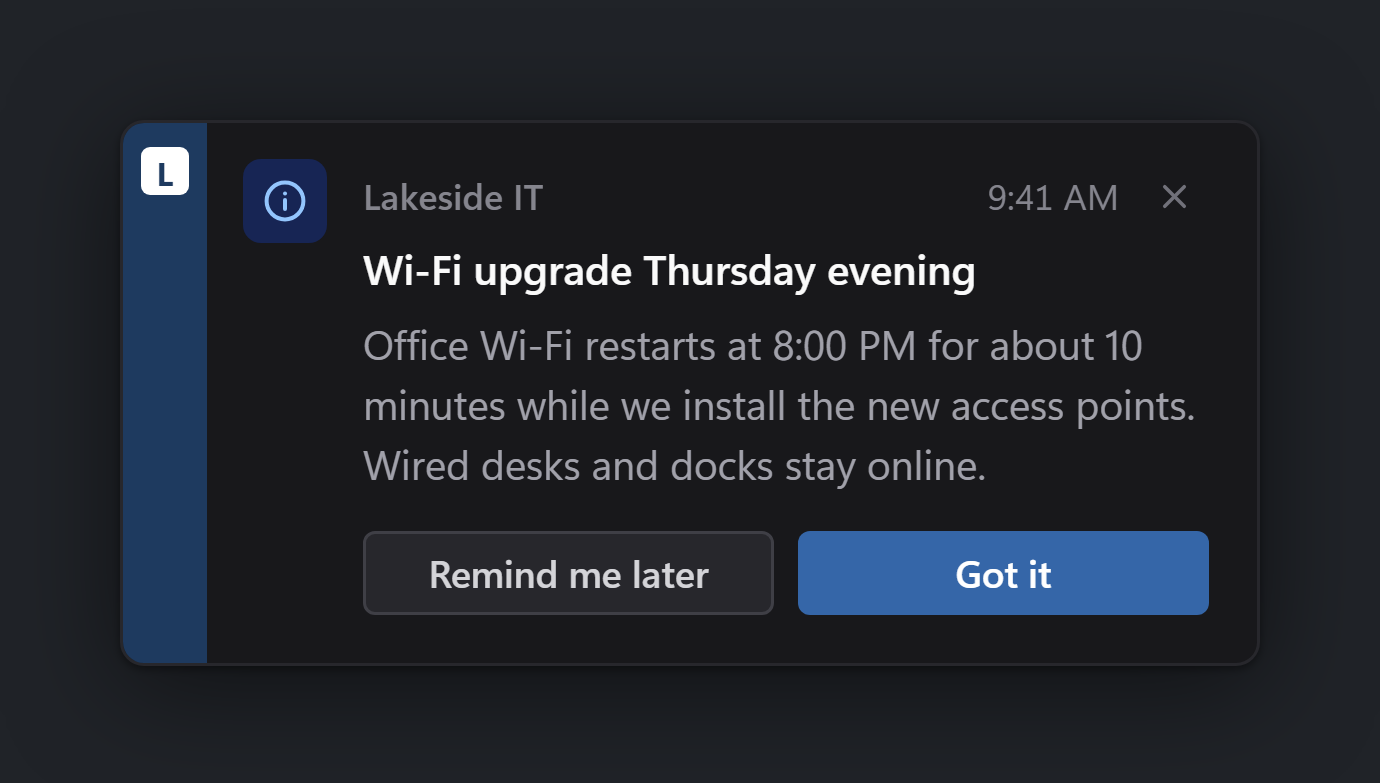
--payload also accepts - to read the JSON from stdin, or the JSON base64-encoded (optionally prefixed base64:), which saves fighting quoting rules in RMM script boxes.
Every field is explained in the campaign reference (reference coming soon), and there are ready-made examples in schemas/examples (reference coming soon). Pardon checks every campaign against the schema before showing anything, and unknown fields are rejected rather than ignored, so a typo fails loudly with exit 11.